Right-click anywhere in the Component Viewer to access the Component Viewer Commands. The commands apply to the selected GCD or the selected part.
The following commands are available when selecting parts in an assembly:
-
Initialize: Initializes the selected parts or assemblies. Every part in the selection is initialized to the same process group, Digital Factory and production settings.
-
Open: Opens the selected part in a new tab. This option is available only if just a single part is selected.
-
Save: Saves any changes in the selected parts or assemblies.
The following commands are available when selecting a GCD in both part and assembly views:
-
Edit: Opens the Geometric Cost Driver Editor for the highlighted GCD. If no GCD is highlighted, this command is unavailable.
-
Remove: Deletes the selected virtual welds or user-created setup axes.
-
Edit Tolerances...: Opens the Tolerance Editor for the highlighted GCD. If no GCD is highlighted, this command is unavailable.
-
Auto-merge: Auto-merges an unmerged ComboVoid GCD. Available only for ComboVoid GCDs that have been unmerged by using the Unmerge command.
-
Unmerge: Unmerges a SimpleHole or a MultiStepHole GCD from a Void GCD in a ComboVoid GCD.
-
Viewer: Opens the list of the Component Viewer controls.
-
Tools: Opens the list of the Component Viewer tools. Different tools are available depending on the Primary Process Group.
Specifying 2D Images for virtual components
If you have a virtual part or assembly scenario that is not locked, and that does not have a 3D image extracted from a CAD model, you can specify a static image file to be associated with the component and displayed in the viewer area. You can specify this image file when you define the virtual component, or you can specify it later in the viewer area.
Specify or change an image from the viewer
-
Click the Attach 2D Image icon in the upper-left corner of the viewer. (If no image is currently specified, the viewer displays a gray camera icon.)
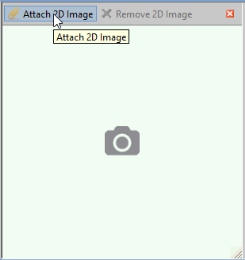
-
Use the Select Image File dialog to navigate to the image file that you wish to associate with the component. Supported image formats are BMP, WBMP, JPG, JPEG, PNG, and GIF.
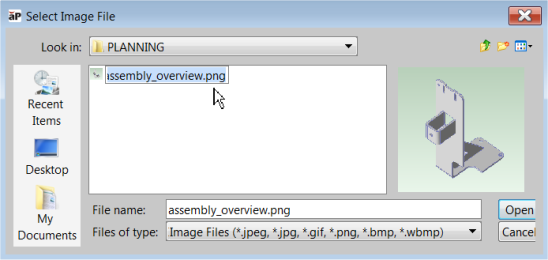


You can use the same procedure to change image files if necessary.
Note: You can also associate image files with CAD-less components when you define the component, or through the Bulk Loader or BOM. You can also attach or delete an image using Scenario > Attach 2D Image and Scenario> Remove 2D image.
Controlling the resolution of the Component Viewer
By default, the resolution of the Component Viewer (and of Tools > Copy Image) is 600 x 600 pixels. This is sufficient for users to view small GCDs, and to read GCD labels when displayed using the Show GCD labels command in the Analysis tool. If you prefer a different default resolution, change it by adding the following line:
apriori.display.copyImageToClipboard.ImageHeight = <n>
to the following file:
C:\Users\<user>\AppData\Local\aPriori\<version>\apriori.user.properties
where:
- <n> is the number of pixels in the height and width of the image
- <user> is the Windows username of the current user
- <version> is the aPriori version number.
Controlling the colors of the Component Viewer
By default, aPriori uses yellow and magenta to highlight selected surface and volumetric GCDs. CAD models that are colored similarly to aPriori highlighting colors are displayed in shades of gray in aPriori instead of their original color. Your system administrator can configure the thresholds at which component colors are considered too similar to aPriori highlighting colors. See the aPriori Professional System Administration Guide for more details.